
Cloud and teams
Sync and back up profiles.
On this page
Sync is off by default. When you turn it on for a profile, Donut uploads the profile’s settings and browser data, and your other computers download them. Proxies, VPNs, groups, extensions, extension groups and statuses can sync too.
Where profiles sync to
| Server | Plan | Profiles you can sync |
|---|---|---|
| Donut cloud | Solo, Pro, Team or Enterprise | 20 on Solo, 50 on Pro, 100 on Team |
| Your own server | Every plan, Free included | No limit without an account; your plan’s limit when you sign in |
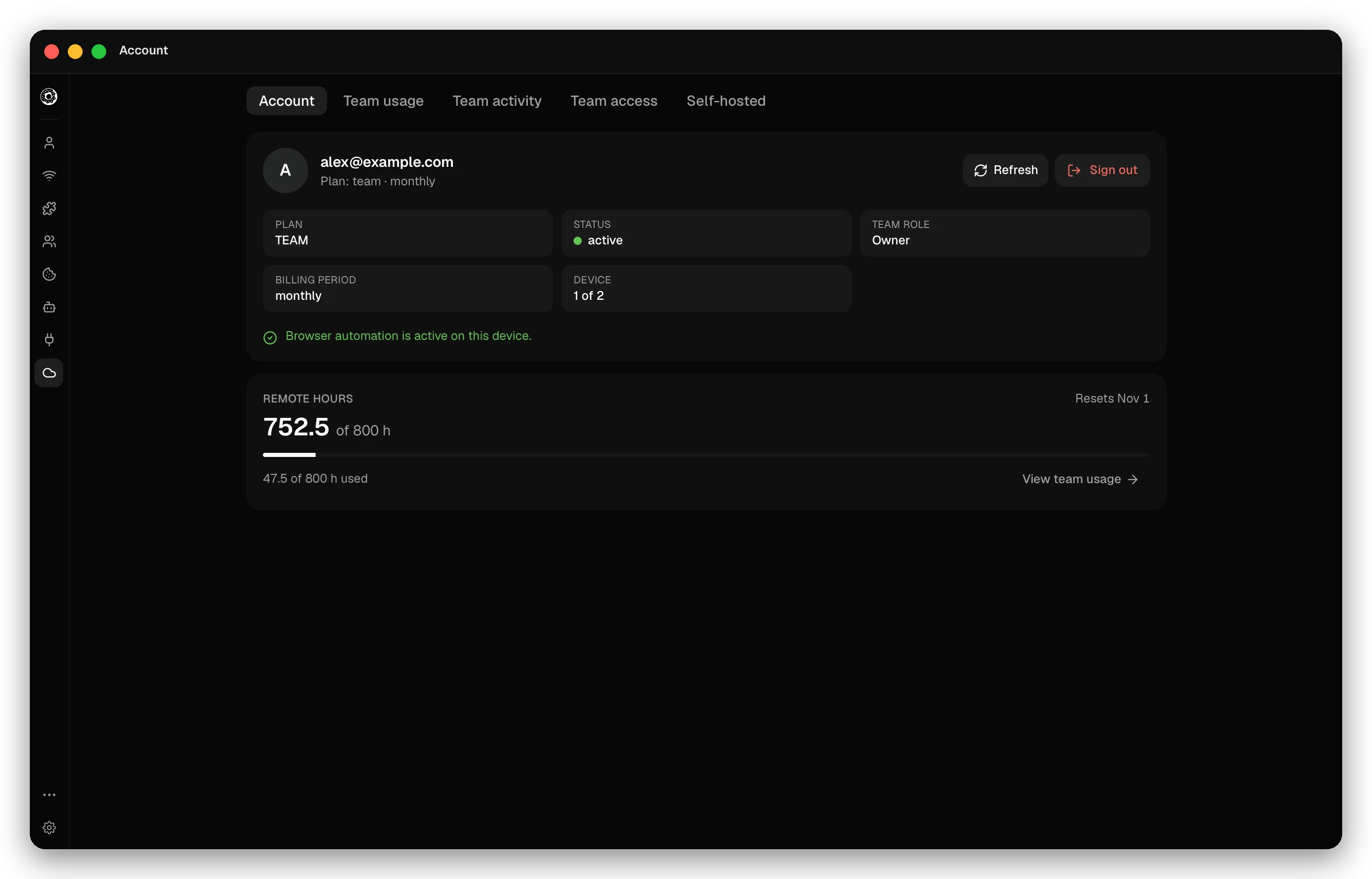
To use Donut cloud, open the Account page (Cmd/Ctrl+Shift+A) and click Sign in. In the dialog, click Login, sign in on the website, copy the code it shows, paste it under Login code and click Verify & Log In. The Account tab then shows your plan, its status, your team role, the billing period, which of your devices this is, and the remote hours left. Browser automation runs only on your primary device (Device 1); sign out there to use it on another device.
 To use your own server, see Self-hosted sync server.
Turn on sync for a profile
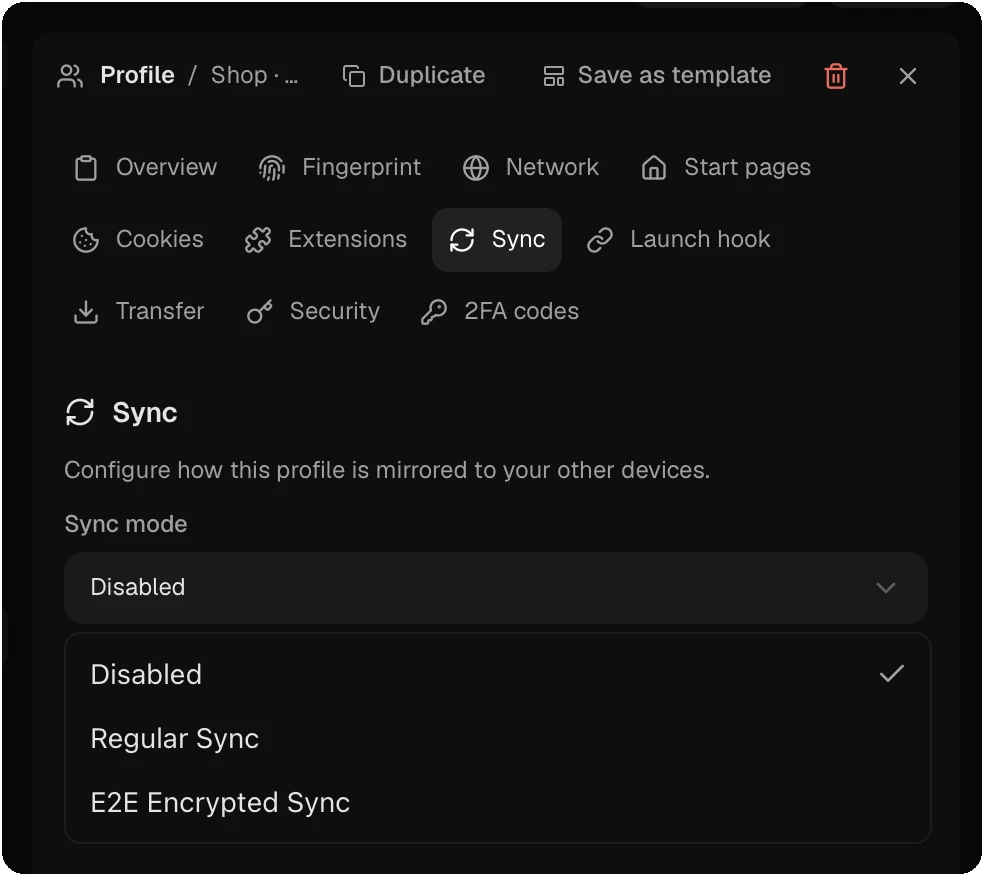
Open the profile panel and choose Sync. Pick a Sync mode:
| Mode | What happens |
|---|---|
| Disabled | The profile stays on this computer |
| Regular Sync | Faster. The server can read the data. Cookie Bot and remote browsers need this mode |
| E2E Encrypted Sync | Donut encrypts the data before upload. The server stores only encrypted data |
A profile syncs when its browser stops, and other computers receive the change. Sync Now starts a sync at once.
The Enable Sync for Existing Items dialog turns on sync for all your proxies, VPNs, groups, extensions and extension groups at once. Each item also has its own Sync switch.
End-to-end encryption
Set the password in Settings → Sync Encryption (8 characters or more). Then choose E2E Encrypted Sync for each profile that needs it.
- The encryption key comes from your password through Argon2id. Data is encrypted with AES-256-GCM before it leaves the computer.
- Enter the same password on each computer. If one has none, sync pauses there until you enter it.
- When you change the password, Donut encrypts every synced item again: profiles first, then proxies, groups, VPNs and extensions.
- Nobody can recover a lost password. Profiles encrypted with it cannot be restored.
- On a Team plan, only the owner sets the encryption password.
Restore points
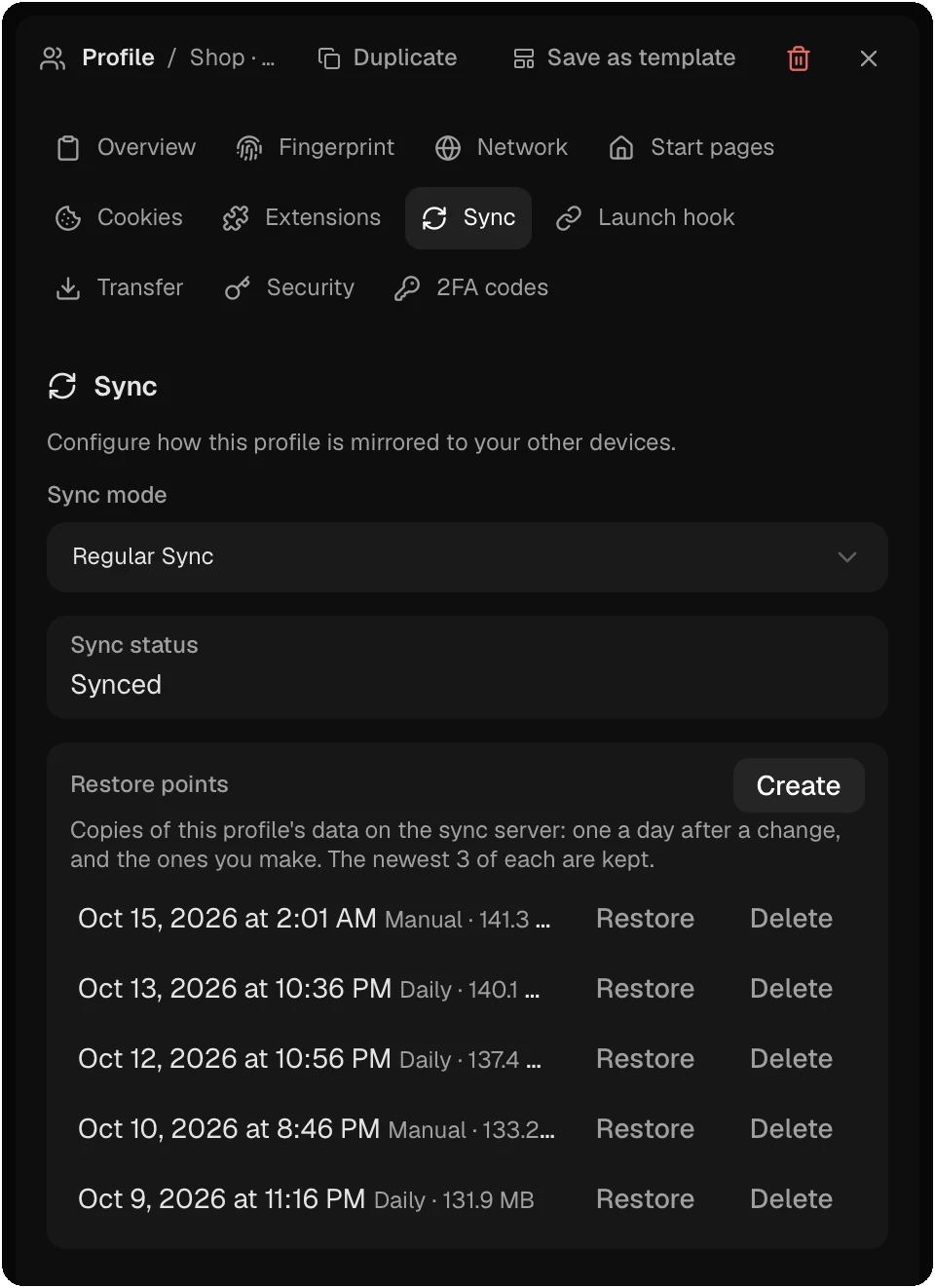
The Sync section of a synced profile lists its restore points: copies of the profile’s data on the sync server. The server makes one a day after a sync that changed something, and you make more with Create. It keeps the newest 3 of each kind (Daily and Manual). Restore puts the profile’s data back to that copy; the current data first becomes a new restore point. Delete removes a copy.
What you cannot sync
- Ephemeral profiles: they have no data to keep.
- Extensions loaded in place from a folder.
- 2FA keys: they stay on the computer where you added them.
- A profile made for another operating system can sync, but only a computer with that system can launch it.
Checked against the app on .
