
Get started
Install Donut Browser and make your first profile.
On this page
Donut Browser is a desktop app for macOS, Windows and Linux. You do not need an account. Profiles, cookies and history stay on your computer.
Download
| System | Packages |
|---|---|
| macOS | DMG for Apple Silicon, or brew install --cask donut |
| Windows | x64 installer, or a portable ZIP |
| Linux | .deb, .rpm and AppImage for x86_64 and ARM64; Flatpak and Snap for x86_64 |
| Nix | nix run github:zhom/donutbrowser#release-start |
Get the files from the home page or the GitHub releases.
On a 64-bit Linux desktop, this script installs Donut:
curl -fsSL https://donutbrowser.com/install.sh | shOn Debian, Ubuntu, Fedora, RHEL and related systems, it adds the package repository, so APT or DNF installs the updates. On other systems, such as Arch and openSUSE, it installs the AppImage for the current user. To choose the AppImage, run curl -fsSL https://donutbrowser.com/install.sh | sh -s -- --appimage. Native packages need glibc 2.34 or later; the AppImage needs glibc 2.35 or later.
If the AppImage stops at start, install libfuse2, or run it with APPIMAGE_EXTRACT_AND_RUN=1. The Flatpak cannot set the default browser; choose Donut in your system settings instead. The Snap needs sudo snap connect donutbrowser:audio-record for the microphone and sudo snap connect donutbrowser:camera for the camera.
First start
- The Wayfern Terms and Conditions dialog opens. Read the terms and click I Accept. Wayfern is the Chromium-based engine that runs every profile. Until you accept, the local API answers
403. - The Welcome to Donut Browser dialog opens. Click Next. On the Licensing step, click I understand.
- On macOS, the next step asks for microphone and camera access. Click Allow access or Not now. Each site still asks you separately.
- Donut downloads Wayfern. This happens once. Later engine updates download in the background.
The app sends no telemetry, analytics or crash reports.
Create your first profile
- Click Create my first profile at the end of the welcome steps, or New at the top right of the Profiles page.
- Enter a Profile Name.
- Under Proxy / VPN, choose a proxy or VPN, or click Add Proxy. A profile without one uses your own IP address.
- Click Create. Wayfern makes a new device for the profile: user agent, screen, fonts, WebGL, canvas, audio and the other values sites read.
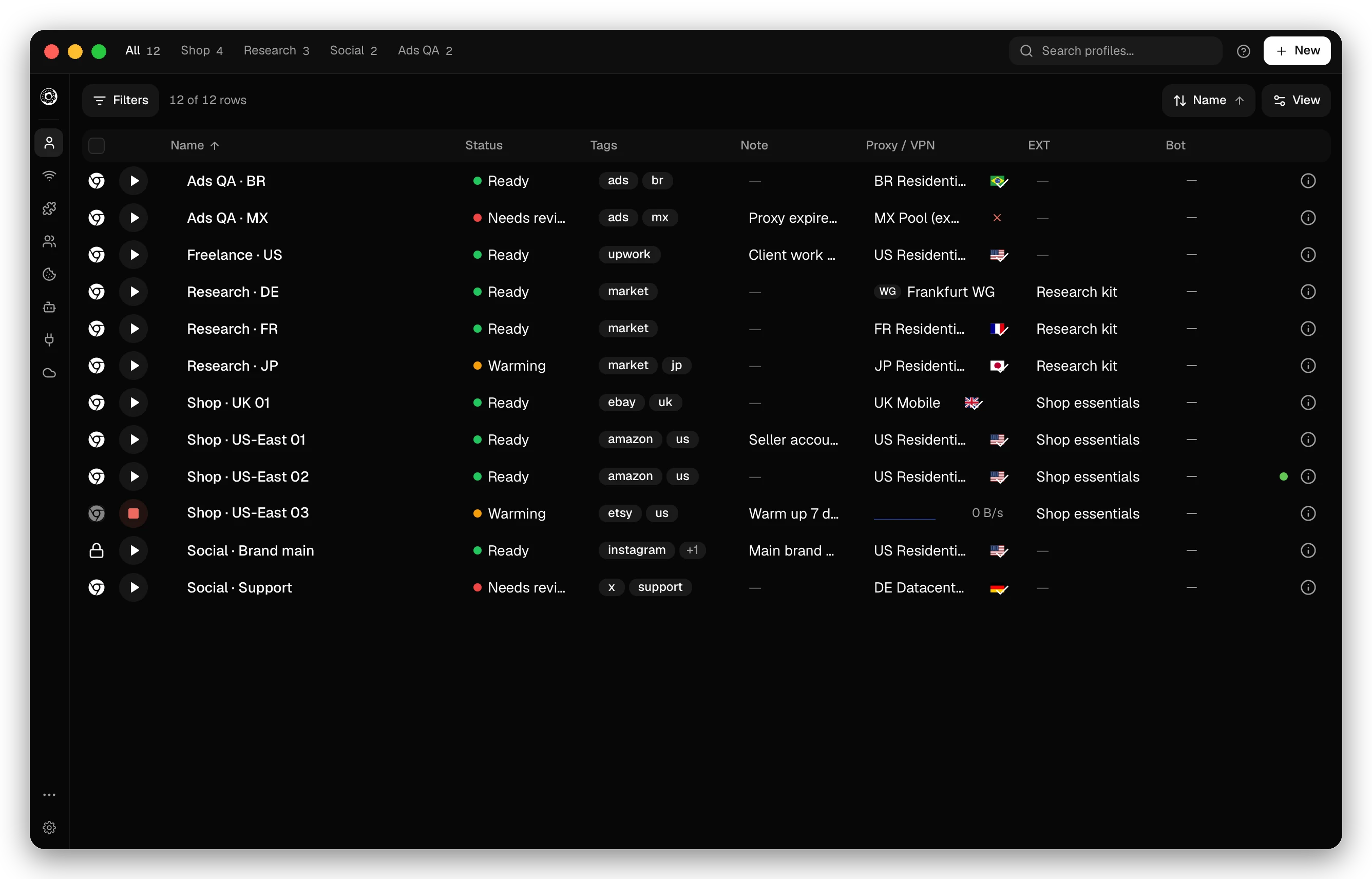
- Click the launch button on the profile’s row.
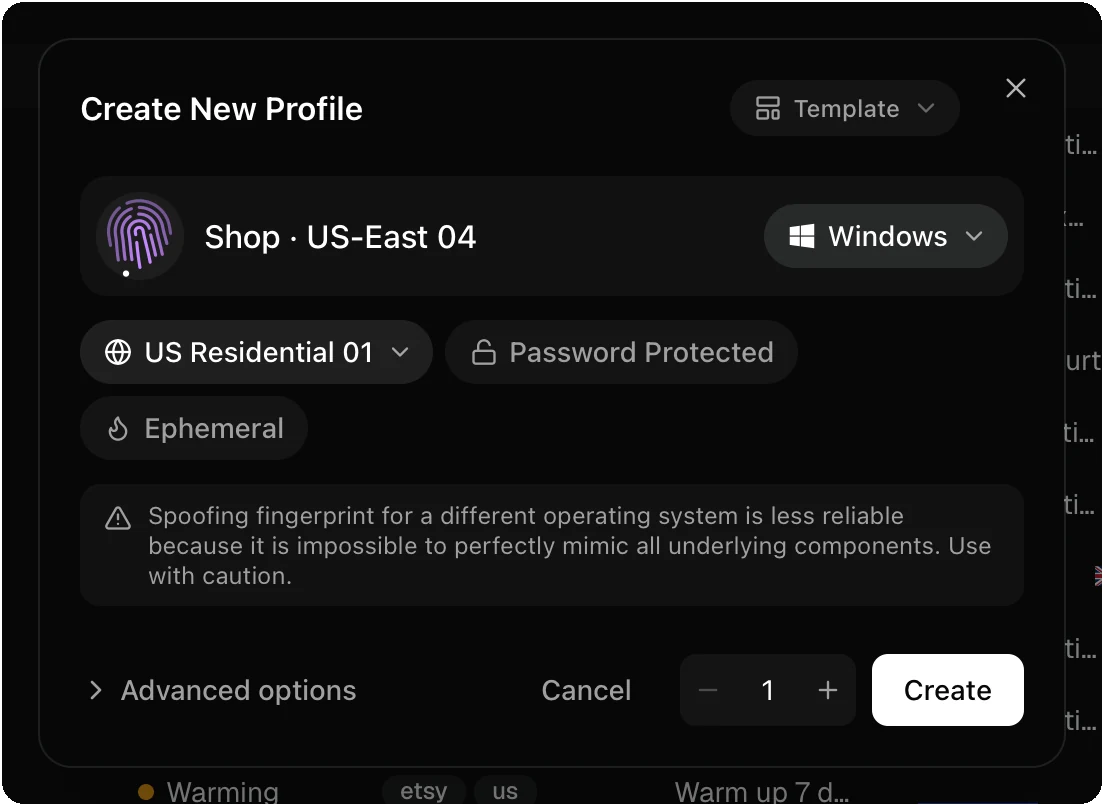
Each profile has its own cookies, history, extensions and fingerprint. Two profiles never share a session. To learn what you can change, read Profiles and fingerprints.
Personal and commercial use
The app is free for personal use. Commercial use is free for a 2-week trial; after that it needs a paid plan. All features keep working when the trial ends. Settings → Commercial License shows the time left.
Next steps
- Import profiles from Chrome, Edge, Brave and other Chromium browsers.
- Add proxies and VPNs, then give each profile its own route.
- Turn on sync to back up profiles and use them on other computers.
Checked against the app on .
