
Use the app
Profiles and fingerprints.
On this page
A profile is one browser identity. It has its own fingerprint, cookies, history, local storage, extensions and proxy or VPN. Sites see each profile as a different device. Local profiles are unlimited on every plan.
Create a profile
On the Profiles page, click New at the top right. The Create New Profile dialog has these fields:
| Field | What it sets |
|---|---|
| Profile Name | The name in the table |
| Template, Number of profiles | Settings from a saved template, and how many profiles to make |
| Proxy / VPN | The route, found by name or country. See Proxies and VPNs |
| Operating system fingerprint | The system the profile shows to sites |
| Password Protected, Ephemeral | See Locked and ephemeral profiles |
| Advanced options | The launch hook URL, DNS blocklist, extension group, DNS server, start pages and the fingerprint settings |
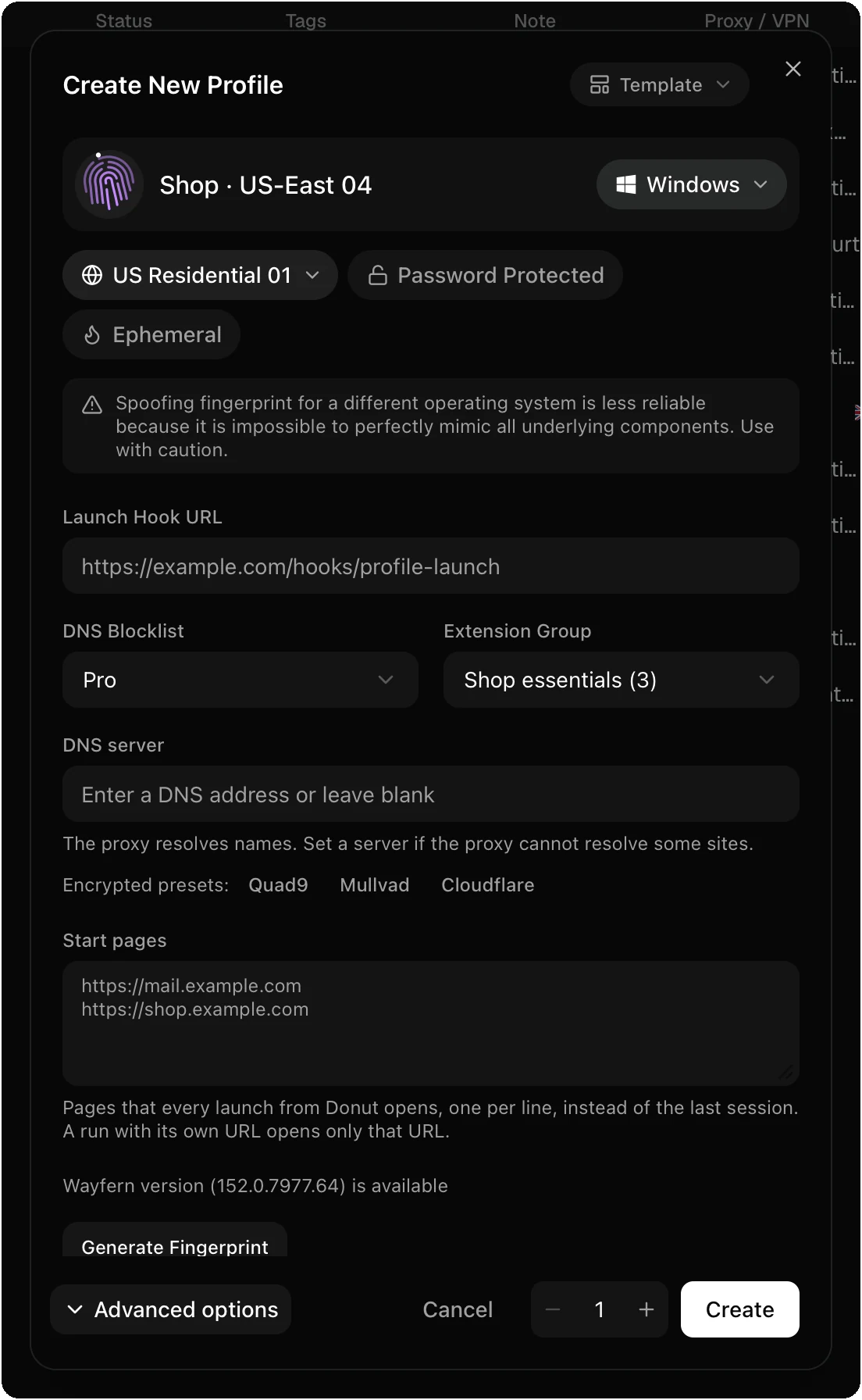
Wayfern is the only engine. It sets the fingerprint inside the browser, in C++, with no script on the page.
New fingerprints have an hourly limit, so that one computer cannot make thousands of devices at once:
| Plan | New fingerprints an hour |
|---|---|
| Free | 8 below 40 profiles, 6 below 80, 4 below 120, then 2 |
| Solo | 10 |
| Pro, Team, Enterprise | 100 |
On a paid plan, Donut refuses a new profile past the limit and tells you when the next one is possible. On Free, Donut warns you. Past the free limit, new fingerprints can be blocked for 24 hours or more.
Operating system
The operating system of your computer is free on every plan. To show a different one (for example, a Windows device on a Mac), you need Pro, Team or Enterprise.
A cross-OS fingerprint is less reliable than a native one: some system-level values can still show the real operating system. A profile made for another system shows “This profile was created on … and is not supported on this system” on computers that cannot run it.
The profile panel
Click the info button on a profile’s row to open its panel. The sections are Overview, Fingerprint, Network, Start pages, Cookies, Extensions, Sync, Launch hook, Transfer, Security and 2FA codes. The header has Duplicate, Save as template and delete.
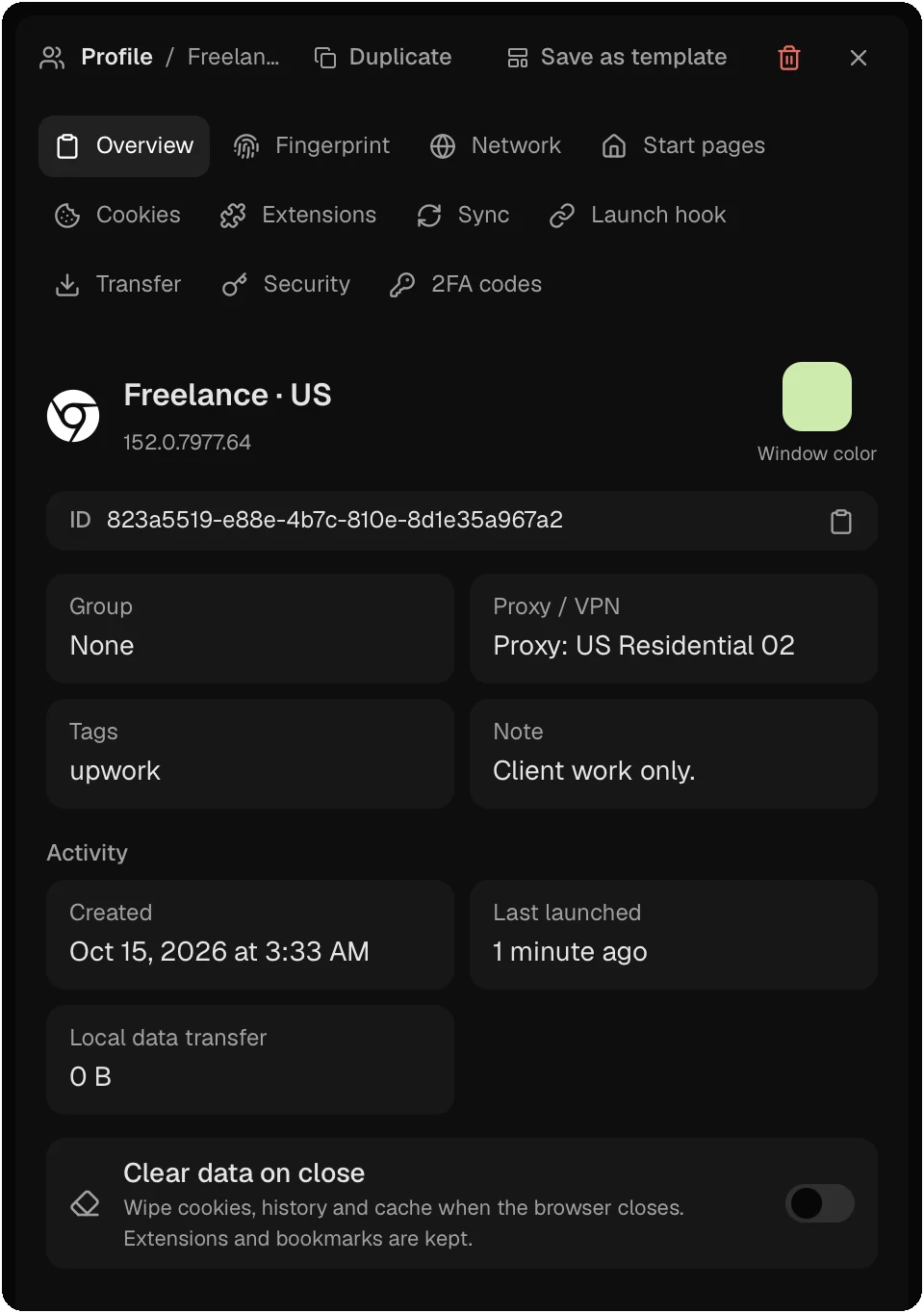
View and edit the fingerprint
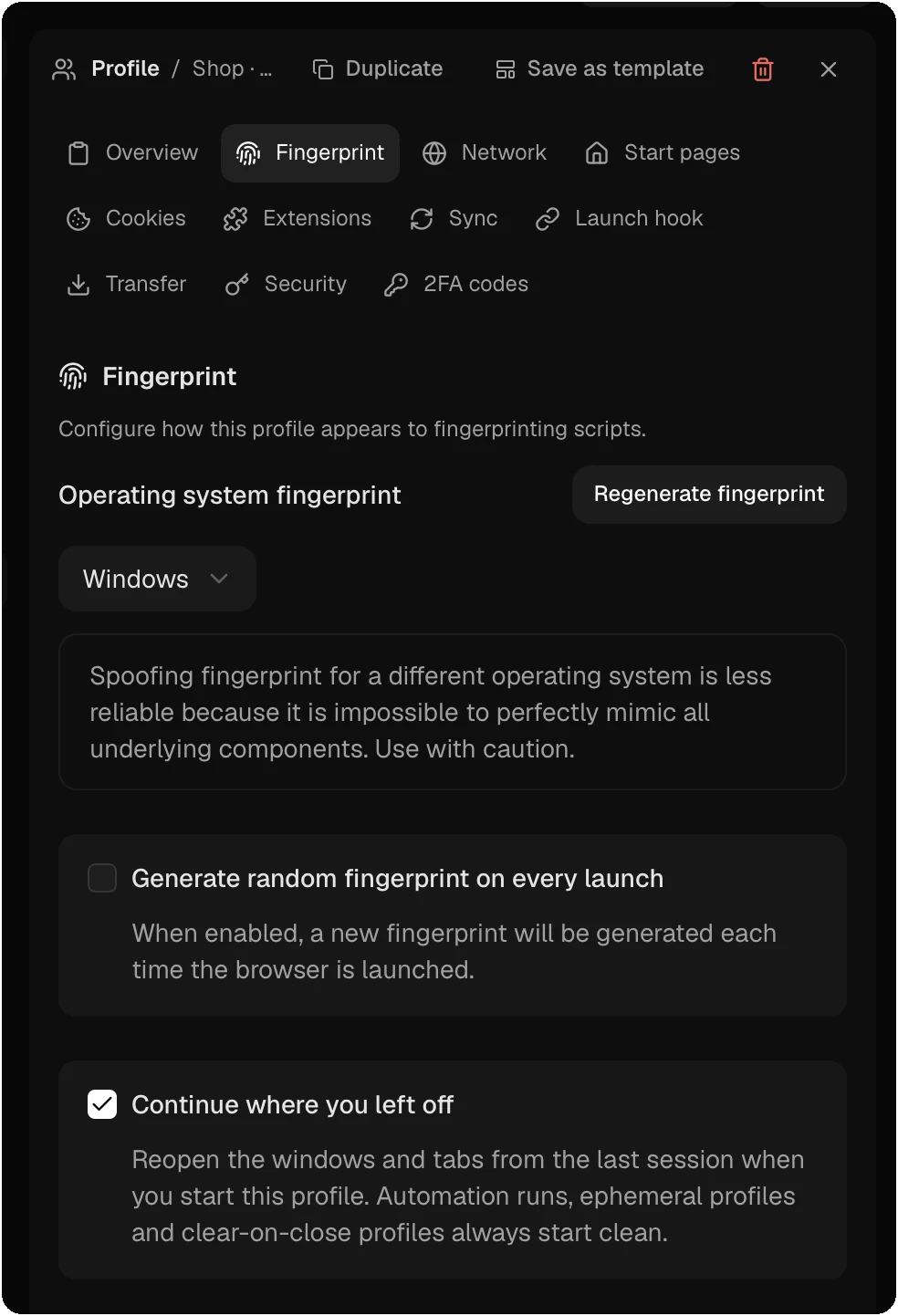
Open the profile panel and choose Fingerprint. Viewing and editing the fingerprint of an existing profile needs Pro, Team or Enterprise. At creation, every plan can set the WebRTC mode, the camera and Generate random fingerprint on every launch under Advanced options.
You can edit these groups of values:
- User agent and platform, hardware concurrency, device memory and touch points.
- Language and locale, timezone and geolocation.
- Screen, available area, window size and device pixel ratio.
- WebGL vendor, renderer and parameters; the canvas noise seed; fonts; audio; battery; vendor information.
- Blocking options for images, WebRTC and WebGL.
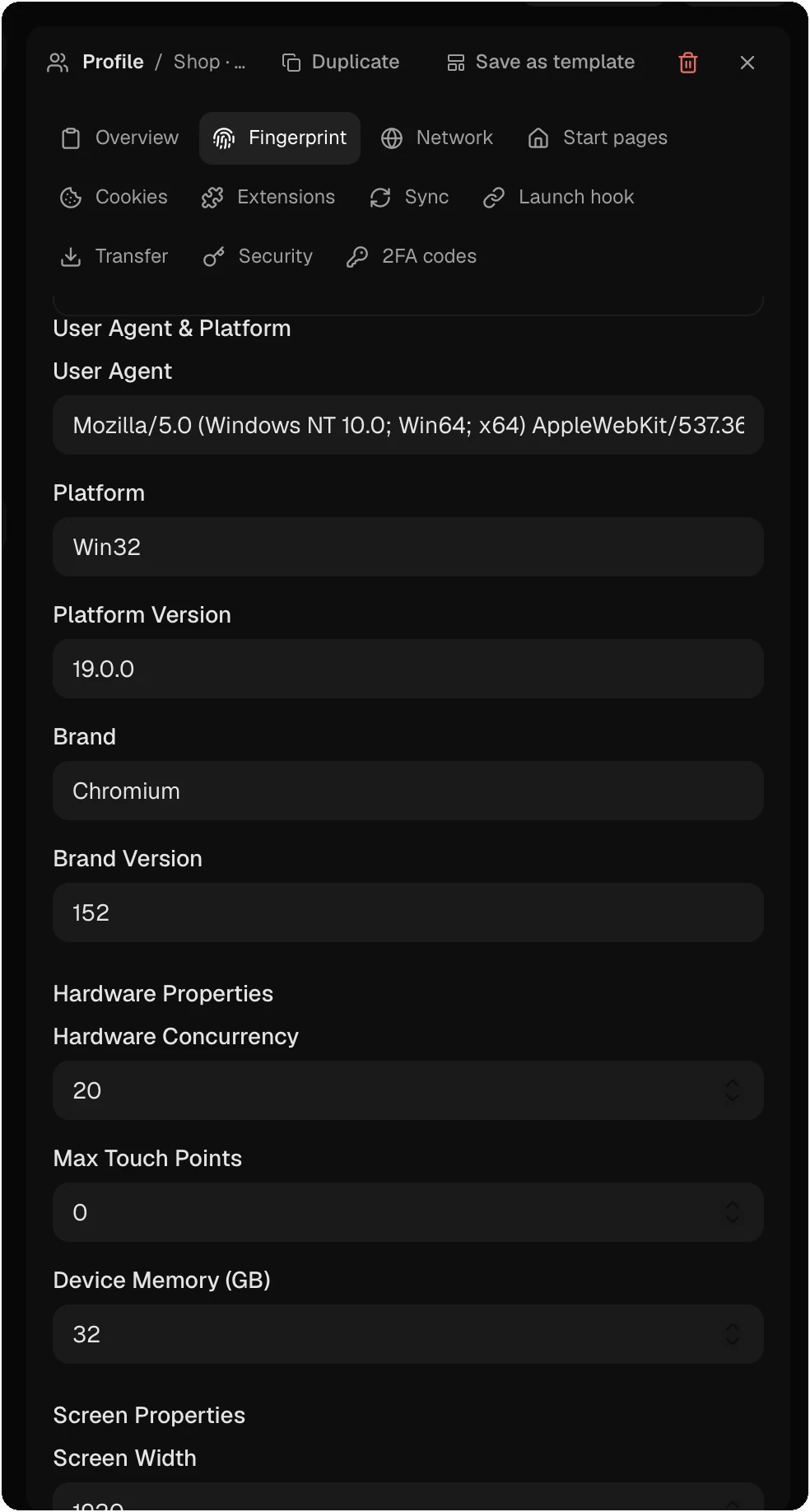
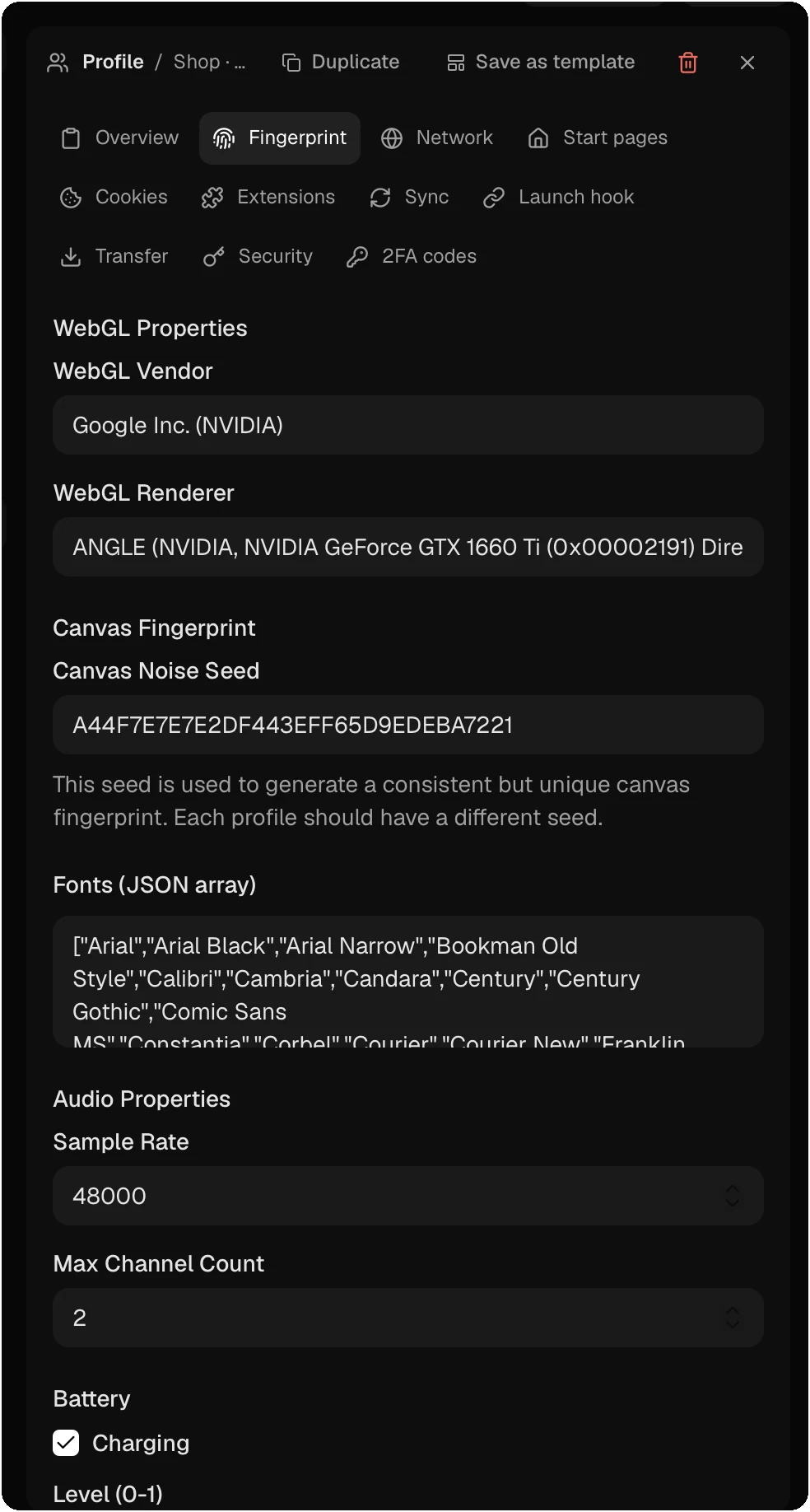
Change values only when you know why. A value that does not match the rest of the device can break sites or make them flag the profile. Stop the profile before you edit it.
Other controls in the same section:
- Regenerate fingerprint gives the profile a new device. It keeps its cookies and logins, so sites that know the profile can ask you to sign in again or block the account.
- Generate random fingerprint on every launch makes a new device at each start.
- Persona is the person the profile fills forms with. The values come from the profile’s own seed, so they stay the same on every launch.
- Camera sets what the claimed camera shows: a PNG as a still image, or a Y4M or MJPEG clip on a loop. With no source, the camera shows dark frames and the real camera stays closed.
- Launch arguments add supported Chromium switches, such as
--mute-audio. They need Pro, Team or Enterprise.
WebRTC
WebRTC can show a site your real IP address. Each profile has a WebRTC mode:
| Mode | What sites see |
|---|---|
| Automatic (default) | The proxy’s exit address when the route can carry WebRTC, and nothing otherwise |
| Proxy exit only | Always one address: the exit of the proxy |
| Blocked | No WebRTC address at all |
The proxy check shows if a proxy carries UDP.
Sessions and start pages
Continue where you left off opens the windows and tabs of the last session. Start pages opens a fixed list of pages, one per line, at every launch from Donut. Automation runs, ephemeral profiles and clear-on-close profiles always start clean.
Templates, clones and bulk edits
- Save as template (profile panel header) stores the settings of a profile. New profiles from the template get its settings and their own new device. The name, the note and the device stay with the original profile.
- In Create New Profile, choose a template and set Number of profiles to make many at once. They get the names “Name 1”, “Name 2” and so on, after the numbers already in use.
- Duplicate (profile panel header) copies a stopped profile under a new name. The clone gets its own new device, but it keeps a copy of the source’s cookies, local storage and history. Clear them in the clone if the two must stay unlinked.
- Select profiles in the table and click Edit selected to add or remove tags, set a note, or give each one a new device at its next launch.
Organize the table
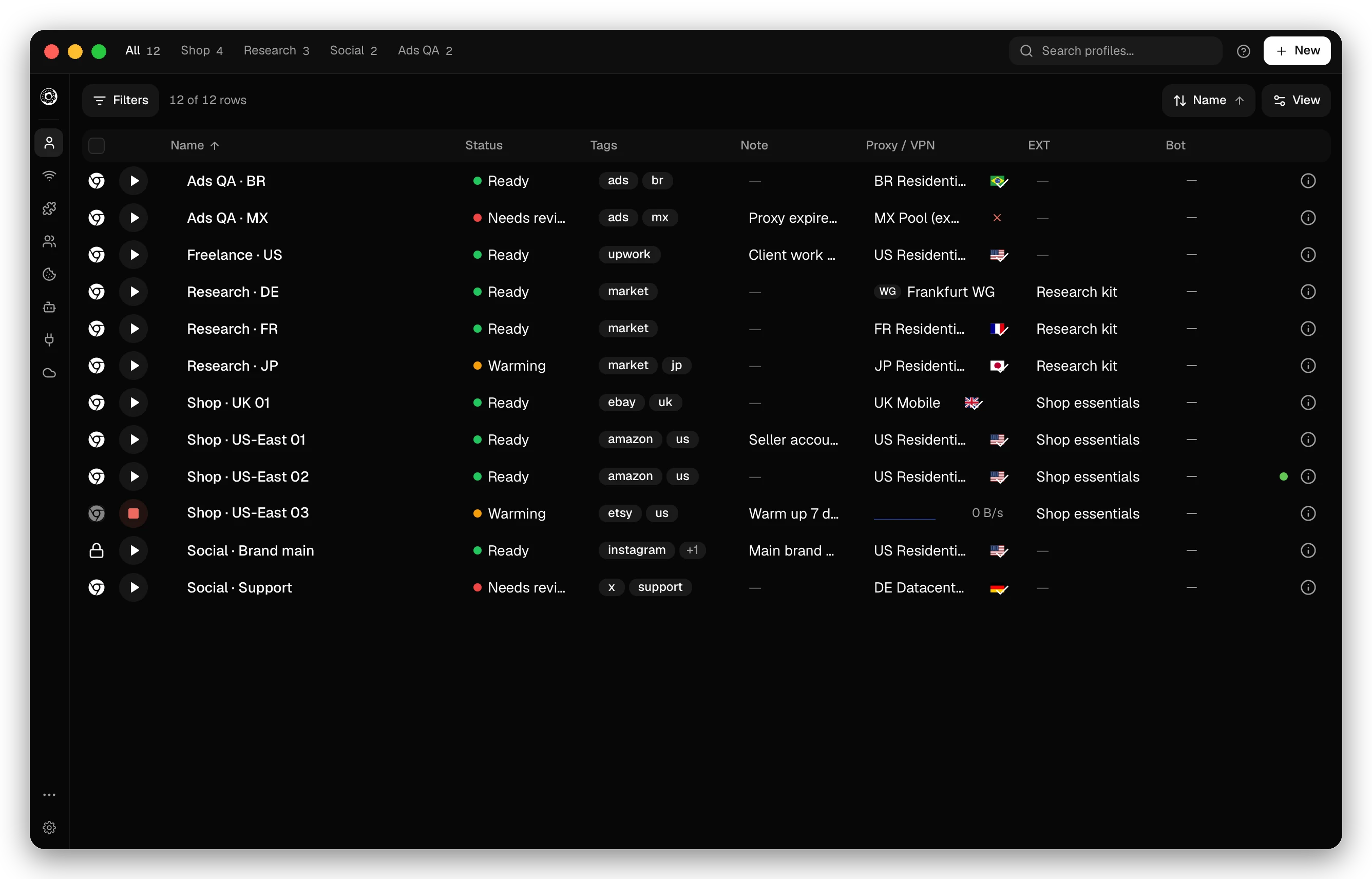
The table shows Name, Status, Tags, Note, Proxy / VPN, EXT (the extension group), DNS (the blocklist level). When the window is wide enough, it also shows Bot (Cookie Bot, on paid plans) and ID. Sort by name or by creation date. The group tabs above the table filter by group; Cmd/Ctrl+1 to 9 picks one.
The search box finds words in names, notes, tags and IDs. Add fields to narrow it down:
| Query | Finds |
|---|---|
status:running group:"Client A" | Running profiles in one group |
tag:none proxy:any | Profiles with no tag that have a proxy |
launched:>30d -tag:archived | Profiles not launched for 30 days, except archived ones |
tag:ads or tag:seo, tag:ads,seo | Either tag |
tag:=prod | The whole value only |
created:>=2026-01-01 | Created on or after a date |
Other fields: name, note, id, vpn, ext, dns, os, browser, sync, email, version, locked, ephemeral and state (the status label). A - before a field excludes its matches.
- The Status column labels where each account stands. Manage statuses… adds your own, or a starter set (Active, Warming up, Needs review, Banned). Statuses sync to your devices and to your team.
- Notes and tags: see Groups, tags and bookmarks.
- The action bar for selected profiles has Edit selected, Assign to Group, Assign Proxy, Distribute Proxies, Assign Extension Group, Copy Cookies, Enrol in Cookie Bot and Delete. Run selected and Stop selected need Pro, Team or Enterprise.
2FA codes
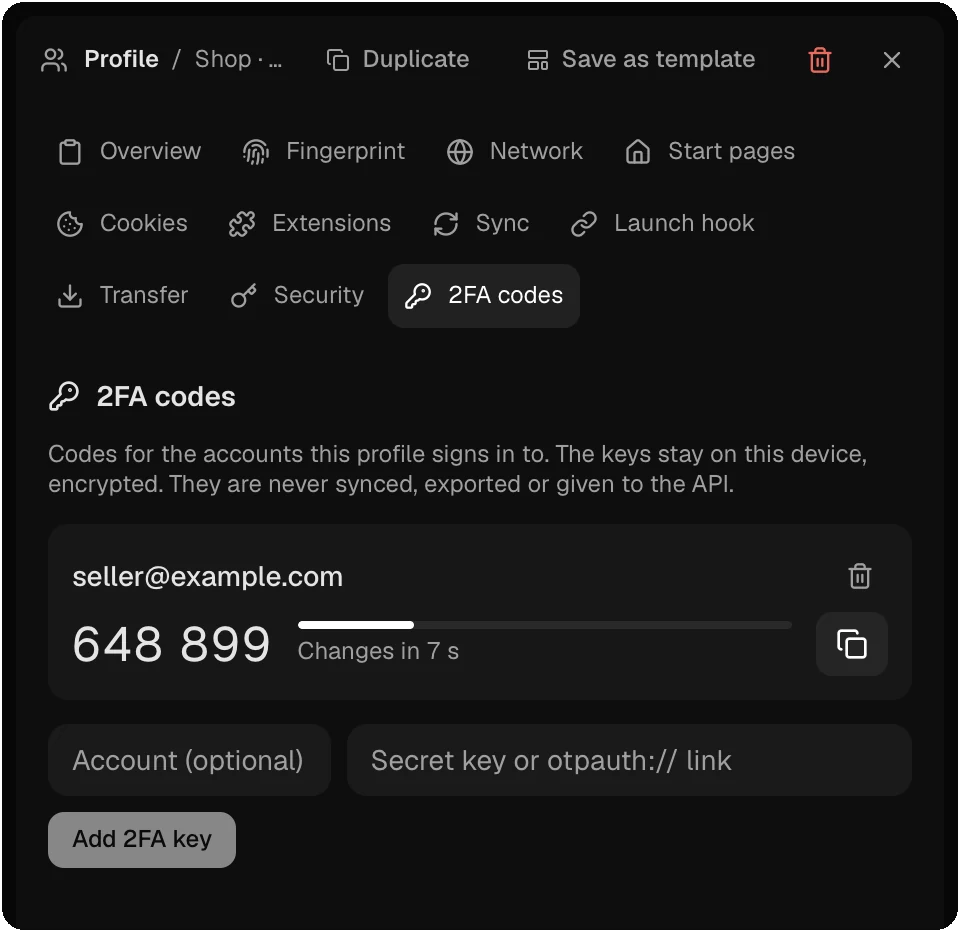
The 2FA codes section of a profile keeps the two-factor keys of the accounts it signs in to, and shows the current code. The keys stay on this computer, encrypted. They are never synced, exported or given to the API. To read one code without saving the key, press Cmd/Ctrl+Shift+O.
Launch hook
Launch Hook URL makes Donut send a GET request to an http or https address every time the profile launches.
Traffic
While a profile runs, a live bandwidth graph replaces its proxy name in the table. Click the graph to open Traffic Details: the data the profile sent and received, its requests, and its top domains by traffic or by requests. Pick a period from Last 1 min to All time. Clear history deletes the profile’s records.
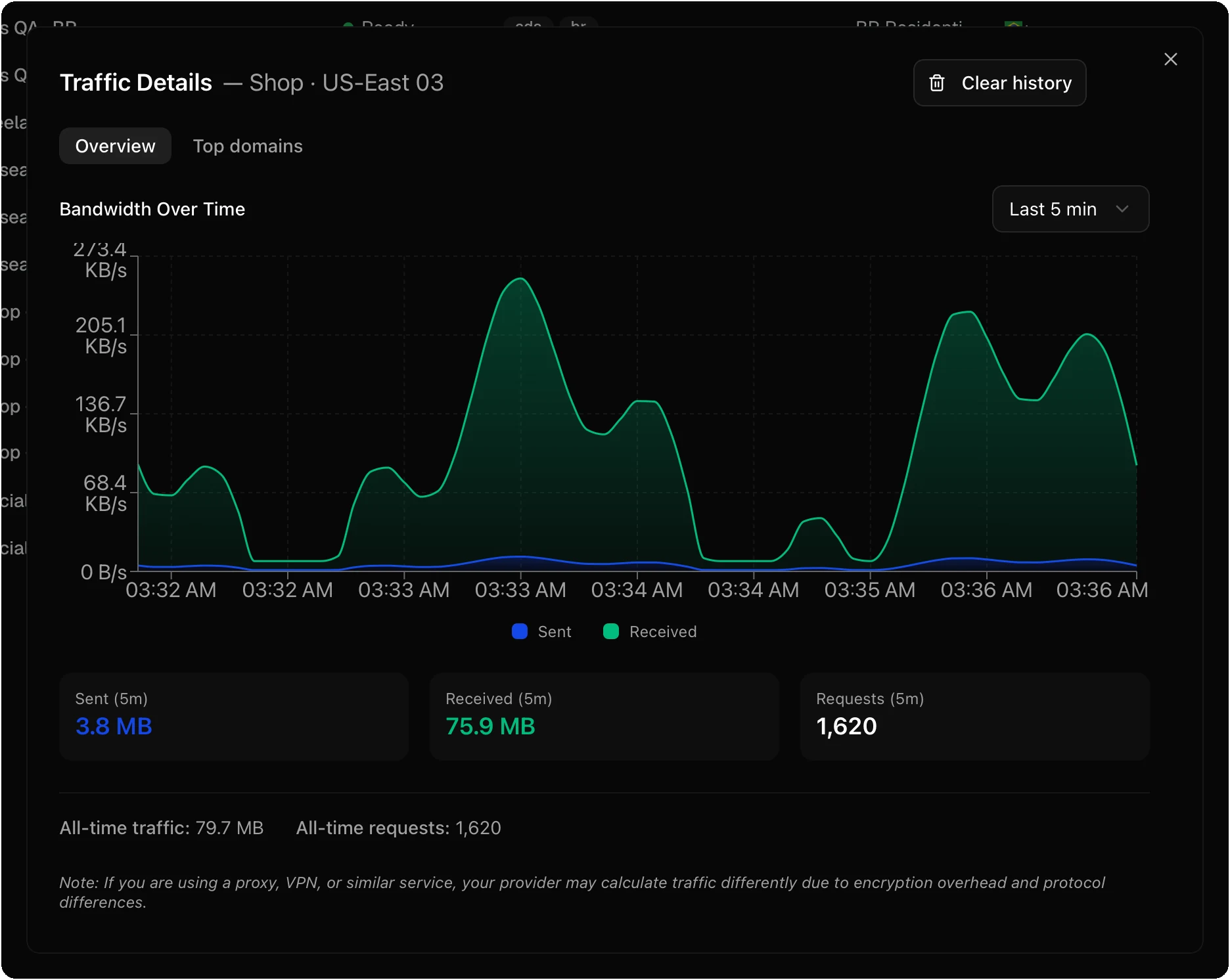
In Settings → Privacy, turn off Record visited sites to keep only totals. Password-protected and ephemeral profiles never record sites.
Trash
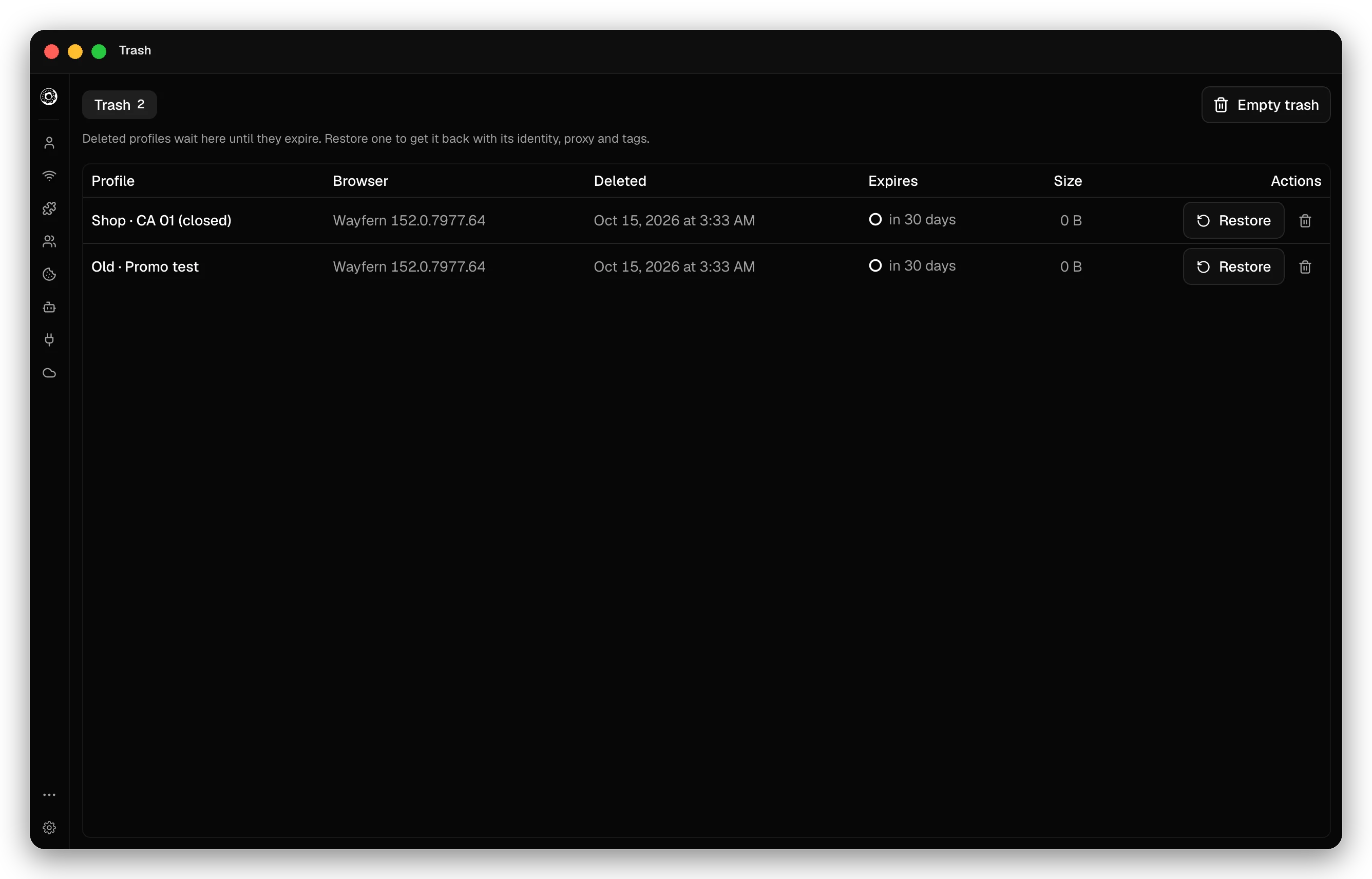
Deleted profiles go to the Trash (More menu, Cmd/Ctrl+Shift+T). Restore brings a profile back with its identity, proxy and tags. Settings → Keep deleted profiles for sets how many days they wait, or Delete at once. Delete forever and Empty trash destroy the data.
Move a profile to another computer
In the profile panel, Transfer → Export profile writes a Donut profile archive. Choose Include the browser data to add cookies, logins and extension state. A password-protected profile exports its configuration only. On the other computer, open Import profile → Donut archive: the profile arrives as a new one and never replaces one you have. To keep profiles in step on several computers, use sync.
Open links in the right profile
Settings → Default Browser → Set as Default Browser makes Donut your system browser. When you click a link in another app, Donut asks which profile opens it. The portable Windows build has no Default Browser section.
Checked against the app on .
